
顯示器KVM切換器如何簡化家庭雙PC遊戲設置
廣告
Monitor KVM switches let players share one display, keyboard, and mouse across two gaming rigs without cable swaps.
Today in 2026, many enthusiasts run a dedicated gaming desktop alongside a streaming, work, or secondary rig.
Constant plug-and-unplug cycles wear down delicate DisplayPort and USB ports over time.
A smart switching box keeps desk clutter low while preserving high refresh rates and responsive peripheral control.
Key Highlights Inside This Guide
- Daily workflow relief: Switch between gaming and streaming or work machines with one button or hotkey.
- Signal and peripheral choices: Compare bandwidth limits, USB pass-through behavior, and EDID handling before buying.
- Practical desk setups: See how dual-PC households streamline cables, audio, and multi-monitor layouts.
- Quick buyer answers: Review common questions on latency, high refresh rates, and mixed operating systems.
What Makes Modern Monitor KVM Switches Fit Dual-PC Gaming?
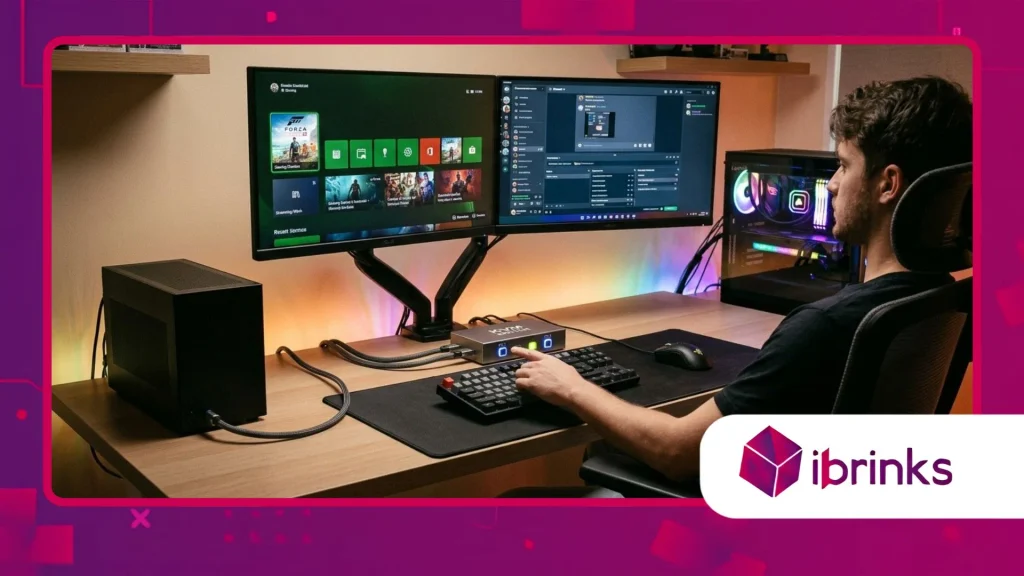
Dual-PC households often pair a high-frame-rate gaming rig with a second system dedicated to encoding streams, editing clips, or handling daytime tasks.
廣告
Swapping cables manually behind a desk wastes time and strains GPU connectors. Dedicated monitor KVM switches route video and USB data cleanly so both computers stay wired and ready.
Unlike older office boxes capped at 60 Hz over legacy connectors, current gaming-oriented units target high-refresh displays and low-latency peripherals.
Enthusiasts still verify cable length, DisplayPort or HDMI version support, and USB hub bandwidth before committing.
Pairing solid shielded cables with a capable switch prevents black screens or dropped inputs during tense matches.
How Do Monitor KVM Switches Route Video and Peripherals?
Inside a typical switch, active electronics or high-speed relays direct incoming video streams from PC A or PC B to the connected monitor.
Meanwhile, an internal USB hub passes mouse, keyboard, headset, or controller data to whichever system currently holds focus.
Hotkeys, front-panel buttons, or wired remotes trigger the handoff in a fraction of a second.
Some models also maintain display handshakes, known as EDID emulation, on inactive ports.
That feature stops Windows from rearranging desktop windows or resetting resolutions every time you flip back to a rig.
Smooth window placement matters a lot when you jump between a game client and a chat or capture overlay.
Why Do High Refresh Rates Matter When Choosing a Switch?
Competitive shooters and fast action games reward smooth motion clarity at 144 Hz, 240 Hz, or higher.
If a switch bottlenecks video bandwidth, your display may drop to lower refresh rates or force chroma subsampling.
Checking exact resolution-and-refresh-rate ratings prevents unpleasant surprises on ultrawide or high-DPI panels.
Cable quality plays an equally decisive role alongside the switch itself. Short, certified cables carry high-bitrate signals far more reliably than long or worn leads.
Think of the video path like a water pipe: a narrow fitting anywhere along the line restricts flow for the whole system.
另請閱讀: 為什麼高端滑鼠墊會成為電競裝備
What Happens to Gaming Mice and Keyboards During Switching?
High-polling-rate gaming mice and mechanical keyboards can behave differently depending on how a switch handles USB traffic.
Dedicated USB 3.0 or high-speed ports help peripherals reconnect quickly without stutter. Some switches also offer separate USB HID ports that keep basic input devices responsive across transitions.
Wireless dongles sometimes need a short moment to re-enumerate when moving between two operating systems.
Testing your specific mouse, keyboard, and wireless audio receiver ensures smooth handoffs. Reliable peripheral switching keeps aim and movement consistent from the moment the screen updates.
How Can You Set Up Dual-PC Gaming Without Desk Clutter?
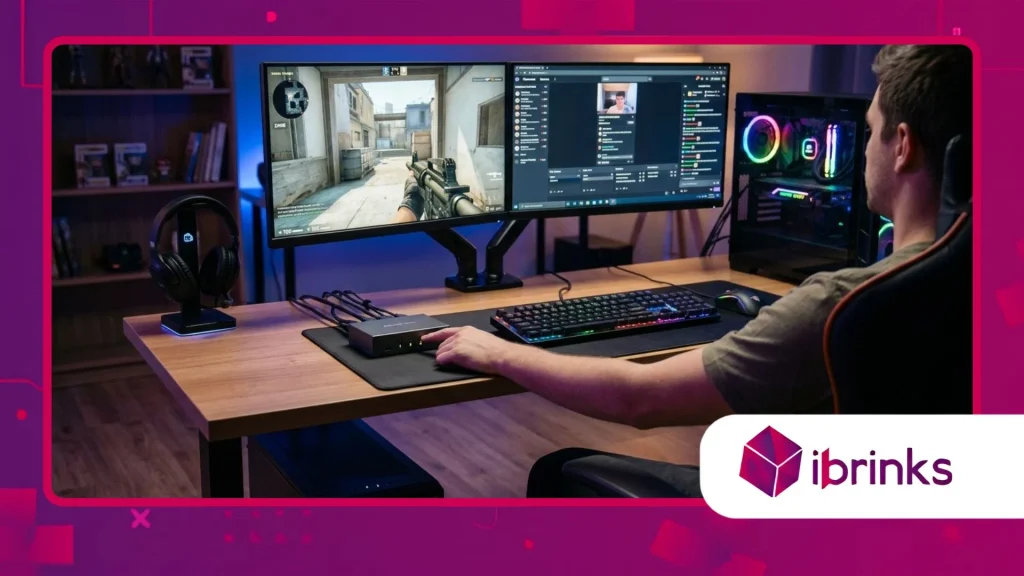
Desk space fills up fast once you add two towers, extra power bricks, capture gear, and audio interfaces.
Running two full sets of keyboards, mice, and monitors turns a clean battle station into a tangled maze.
Centralizing control around monitor KVM switches trims extra hardware while keeping both systems easy to reach.
Consider how two real-world home setups benefit from shared controls.
First, a weekend streamer runs a main gaming PC and a second PC for OBS recording and browser research; one click shifts keyboard and mouse control without crowding the mousepad.
Second, a remote engineer uses a work desktop during the day and a gaming rig at night, keeping one calibrated monitor and one ergonomic mouse on the desk.
閱讀更多: 兼顧散熱和美觀的最佳PC機箱
Which Cables and Ports Should You Check First?
Start by matching the video outputs on both graphics cards to the inputs on your switch and monitor.
Mixed setups such as one PC using DisplayPort and another using HDMI may need clean adapters or matching cables. Confirming port versions upfront saves hours of troubleshooting when a new build goes online.
Next, map out every USB device you plan to share or keep dedicated. Mice, keyboards, and low-draw receivers usually work smoothly through shared switch ports.
High-draw gear like external drives or studio audio interfaces often runs better plugged directly into the active PC or a powered hub.
How Do Audio and Streaming Gear Fit In?
Dual-PC setups frequently juggle game audio, team voice chat, and stream monitoring at the same time.
Some switches include 3.5 mm audio jacks or pass audio through the monitor connection. Others leave audio routing to a USB headset, DAC, or capture card so chat stays clear across switches.
A deliberate audio plan avoids awkward echo or missed cues when switching focus. Many players keep voice comms on a separate headset or mixer while letting the main display follow the active PC.
Testing sound levels during a casual session helps catch routing quirks before a live stream or ranked match.
When Is a KVM Switch Better Than Software Sharing?
Software tools that share a mouse and keyboard over a local network work well for casual multi-PC productivity.
However, network-based tools can lag when a machine is under heavy GPU or CPU load, and they do not switch video signals.
Hardware switching keeps input routing independent of operating system hiccups or background updates.
Hardware control also shines when you want full-screen focus on one rig at a time.
Instead of dragging a cursor across screen edges by accident mid-aim, you trigger a deliberate switch. That separation feels cleaner during fast-paced play.
What Should You Compare Before Buying a Switch?
Shopping for monitor KVM switches can feel overwhelming because spec sheets mix display standards, USB speeds, and switching methods.
Focusing on your actual monitor resolution, target frame rate, and peripheral list narrows choices quickly. A clear checklist protects your budget and prevents bottlenecks.
Industry hardware tracking from organizations like Steam and PC gaming market reports consistently shows players adopting high-refresh monitors and multi-device home setups.
As displays push higher resolutions and frame rates, signal integrity becomes more important than ever.
Checking real-world compatibility with your exact GPU and monitor model remains essential before buying.
How Do Different Switch Capabilities Compare?
The table below compares core features players evaluate when picking a switch for dual-PC gaming and daily home use.
| 特徵 | Basic Switch | Gaming-Focused Switch | Direct Cable Swap |
|---|---|---|---|
| Refresh Rate Support | Often 60 Hz or lower limits | Built for higher refresh rates | Matches monitor and cable |
| Switching Method | Push button or simple hotkey | Button, hotkey, or remote | Manual cable unplugging |
| Port Wear | Low on PCs; switch wears | Low on PCs; switch wears | High on GPU and monitor ports |
| 桌面雜物 | Low with shared peripherals | Low with shared peripherals | High if keeping two sets |
| Setup Cost | 經濟實惠 | Moderate to higher | Lowest upfront cost |
Which Mistakes Should Dual-PC Players Avoid?
Buying an under-specced switch for a high-refresh monitor is one of the most common pitfalls.
If the unit caps bandwidth below your panel’s capability, motion smoothness suffers immediately. Always verify maximum supported resolution and refresh rate at your target color depth.
Overlooking cable length and build quality is another frequent misstep.
Cheap or overly long cables can cause signal dropouts, flickering, or blank screens. Using sturdy, well-rated cables keeps data flowing cleanly between both PCs and the display.
How Can You Test Your Setup Before Committing?
Set up your primary monitor, keyboard, and mouse first, then connect one PC to verify full resolution and refresh rate.
Add the second PC next and test switching back and forth while an application or game runs. Check that wake-from-sleep behavior works cleanly on both systems.
Finally, test your most demanding peripheral such as a high-polling gaming mouse after switching inputs.
If everything responds smoothly with no dropped frames or re-pairing delays, your layout is ready.
Are you still letting extra cables and duplicate keyboards crowd your gaming desk when one clean switch can tie it all together?
Bringing Dual-PC Home Setups Together
Clean dual-PC gaming at home comes down to fewer cables, faster transitions, and dependable hardware signals.
選擇 monitor KVM switches that match your display specs and peripheral needs turns two separate machines into one cohesive station.
Take time to check your ports, cables, and audio flow so every session starts without friction. Share your setup experience in the comments to help fellow players compare notes.
常見問題解答
Can a monitor KVM switch handle high refresh rates for gaming?
Yes, provided the specific switch model supports your target resolution and refresh rate over its video ports.
Always check exact bandwidth ratings and use quality cables so the display does not step down to lower refresh rates.
Will a KVM switch add noticeable input lag to my mouse and keyboard?
Hardware switching typically adds negligible delay for standard gaming inputs when paired with proper USB ports.
High-polling-rate mice and wireless receivers should still be tested on your specific switch to confirm smooth behavior.
Do I need the same operating system on both PCs?
No, you can connect two Windows PCs, a Windows gaming rig and a Linux system, or a PC and a Mac.
Keyboard shortcuts or OS-specific features may vary slightly, so verify hotkey compatibility for your mix of systems.
What happens if one PC goes to sleep while using the other?
Most modern systems handle sleep states fine, though display wake behavior varies by GPU driver and switch design.
Features that preserve display handshakes help keep windows from shifting when you switch back.
Should I plug a gaming headset into the switch or directly into a PC?
Many players plug headsets or audio interfaces directly into the relevant PC or an audio mixer for clearer voice and game routing.
Built-in switch audio jacks work for basic needs, but dedicated audio paths often offer cleaner control.
