
Guida alle apparecchiature di acquisizione esterne per console
Annunci
attrezzatura di cattura Queste opzioni offrono ai giocatori su console la completa libertà di registrare le partite non compresse e di trasmetterle in streaming senza limitazioni hardware.
I tradizionali software di streaming per console impongono pesanti limitazioni prestazionali, mentre il trasferimento della potenza di elaborazione su hardware di acquisizione esterno dedicato preserva completamente la fedeltà visiva e la stabilità del sistema.
Le console moderne come PlayStation 5 e Xbox Series X offrono funzionalità interne per la registrazione di clip, ma questi strumenti limitano la durata delle registrazioni e la frequenza dei fotogrammi.
I creatori di contenuti necessitano di trasmissione a latenza zero, personalizzazione audio avanzata e controlli flessibili del bitrate per produrre trasmissioni che soddisfino gli standard mediatici contemporanei.
Investire in hardware esterno garantisce che il tuo ecosistema di streaming rimanga scalabile, flessibile e completamente indipendente dai vincoli del firmware della console.
Annunci
Argomenti chiave di questo articolo
- Comprensione dell'hardware di acquisizione esterna
- Come funzionano i dispositivi di acquisizione esterni
- Vantaggi delle soluzioni di codifica hardware
- Caratteristiche cruciali per le console moderne
- Selezione e configurazione della configurazione
- Velocità di trasmissione e requisiti di risoluzione
- Integrazione del cablaggio e della pipeline audio
- Confronto tra le migliori soluzioni di acquisizione
- Risoluzione dei problemi e migliori pratiche
- Risoluzione dei problemi relativi a HDCP e al handshake.
- Prevenire la latenza nelle dirette streaming
- Domande chiave sull'hardware di acquisizione
Che cos'è un dispositivo di acquisizione esterno e perché è necessario per gli streamer su console?

Come funziona l'hardware di acquisizione esterno nelle console moderne?
Collegando un hardware di acquisizione esterno dedicato tra la console e il televisore, i segnali video HDMI non elaborati possono essere instradati direttamente attraverso un'interfaccia di elaborazione.
Questa configurazione clona istantaneamente il segnale audiovisivo, inviando un flusso di dati puro al display principale e un secondo flusso di dati direttamente al computer di codifica.
Le console elaborano i giochi in modo efficiente senza sprecare memoria interna, risorse della GPU o memoria di sistema per il rendering video.
Sfruttando la trasmissione esterna USB 3.2 o PCIe, queste interfacce inviano flussi video YUV non compressi direttamente a software come OBS Studio.
Quali sono i principali vantaggi rispetto alla registrazione integrata nella console?
Le clip interne sulle console moderne spesso applicano algoritmi di compressione aggressivi che rovinano i dettagli nelle zone d'ombra, riducono la saturazione dei colori e comprimono la gamma dinamica.
Affidarsi a hardware dedicato elimina questi limiti restrittivi sulla durata dei video, la mancanza di canali di chat di gruppo e i cali di frame rate dinamici durante le sessioni di gioco più intense.
Le emittenti mantengono il controllo completo sulla separazione delle tracce audio, sul bilanciamento dei microfoni di gioco e sulle sovrapposizioni visive personalizzate, senza dover dipendere da applicazioni di trasmissione integrate e rigide.
Inoltre, le interfacce esterne di fascia alta supportano segnali ad alta gamma dinamica, tecnologie di frequenza di aggiornamento variabile e flussi video ad alta frequenza di fotogrammi fino a 120 Hz o 240 Hz.
++ Impugnature indispensabili per controller Xbox/PlayStation
Perché scegliere hardware esterno anziché schede di acquisizione PCIe interne?
La scelta di hardware esterno portatile garantisce una compatibilità perfetta con diversi dispositivi, tra cui PlayStation, Xbox e Nintendo Switch, senza dover confinare l'attrezzatura di acquisizione all'interno del case di un PC desktop.
I creatori di contenuti che lavorano su laptop, PC da gioco compatti o configurazioni a doppio PC traggono grande vantaggio dalle semplici interfacce USB plug-and-play.
Secondo i dati dei test hardware di Jon Peddie Research, le vendite di dispositivi di acquisizione video esterni sono cresciute di oltre il 141% su base annua, grazie alla crescente adozione di configurazioni di streaming multipiattaforma.
Spostando l'interfaccia di ingresso video all'esterno del case del computer, si isolano anche i delicati percorsi audio dalle interferenze elettromagnetiche interne al case del computer.
Come si sceglie e si configura l'attrezzatura di ripresa esterna più adatta?
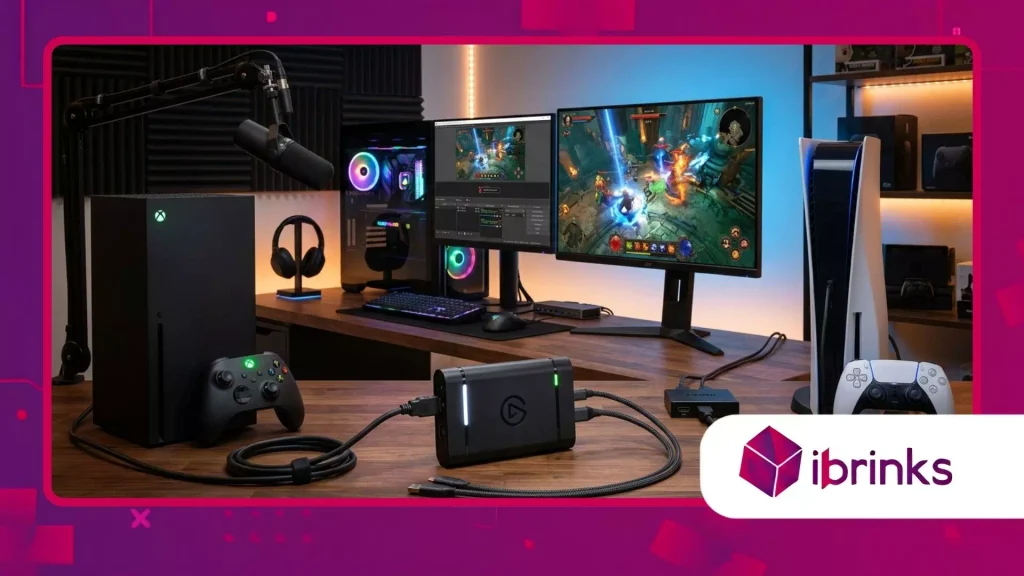
Quali funzionalità di pass-through sono più importanti per PS5 e Xbox Series X?
Selezione dispositivi di acquisizione esterni richiede la scelta di parametri di input che corrispondano esattamente alle specifiche di output video dell'hardware di gioco di ultima generazione.
Se la tua console supporta la risoluzione 4K a 120 fotogrammi al secondo con HDR abilitato, il tuo dispositivo di acquisizione deve essere dotato di funzionalità di pass-through HDMI 2.1.
Ridurre la larghezza di banda HDMI costringe la console a ridurre la qualità dell'output del monitor, introducendo una sfocatura di movimento indesiderata e disabilitando le funzionalità di frequenza di aggiornamento variabile.
Scegliere apparecchiature con pass-through a latenza zero garantisce che ciò che vedi sul tuo monitor da gioco rimanga perfettamente sincronizzato con gli input del controller fisico.
Leggi anche: Guida al software e alla personalizzazione delle tastiere RGB
Come si collegano i flussi audio e video per una registrazione senza interruzioni?
Per configurare una pipeline video efficiente è necessario collegare un cavo HDMI dalla console direttamente alla porta di ingresso della scheda di acquisizione.
Successivamente, collega un secondo cavo HDMI ad alta velocità dall'uscita pass-through della scheda direttamente al tuo monitor da gioco a bassa latenza.
Collega il cavo di uscita USB a una porta veloce della scheda madre del computer, garantendo elevate velocità di trasferimento per i flussi di dati video non elaborati.
Infine, integra uno splitter audio analogico per la chat se hai bisogno di acquisire contemporaneamente canali vocali crittografati, chat di gruppo o segnali di cuffie wireless.
Per saperne di più: I migliori case per PC per flusso d'aria ed estetica
Come si confrontano le opzioni di hardware di acquisizione più diffuse per gli streamer?
La scelta dell'hardware dipende in larga misura dal fatto che la vostra priorità sia l'archiviazione ad alta risoluzione, il gaming competitivo ad alto frame rate o l'estrema portabilità.
Le unità di fascia alta sono dotate di chip DSP dedicati integrati che riducono l'utilizzo della CPU host, mentre le alternative di base si affidano interamente alla codifica software all'interno dell'applicazione di streaming del computer.
Definire con precisione i propri obiettivi di output evita di spendere soldi extra per funzionalità HDMI 2.1 inutilizzate o di acquistare apparecchiature sottodimensionate che limitano le prestazioni della trasmissione.
La tabella seguente evidenzia le principali specifiche prestazionali delle classi di apparecchiature standard oggi disponibili per i creatori.
| Classe di apparecchiature di acquisizione | Passaggio massimo | Risoluzione massima di acquisizione | Interfaccia host | Beneficio del creatore principale |
| USB 3.0 di base | 1080p a 60Hz | 1080p a 60Hz | USB 3.0 (5 Gbps) | Configurazione plug-and-play economica per principianti. |
| USB professionale di fascia media | 4K a 60Hz / 1440p a 120Hz | 4K a 30Hz / 1080p a 120Hz | USB 3.2 Gen 1 | Costi bilanciati con un'elevata frequenza di aggiornamento che ne facilita il passaggio. |
| HDMI 2.1 di punta | 4K a 1440Hz / 4K a 120Hz VRR | 4K a 60Hz / 1080p a 240Hz | USB 3.2 Gen 2 | Conservazione completa di tutte le funzionalità della console senza compromessi. |
Quali soluzioni di risoluzione dei problemi mantengono stabili i segnali di acquisizione?
Come risolvere gli errori di handshake HDCP e le schermate nere?
I problemi di schermo nero durante la configurazione video sono quasi sempre riconducibili alle impostazioni di protezione dei contenuti digitali ad alta larghezza di banda (HDCP) della console di gioco.
Le console moderne attivano automaticamente la crittografia HDCP durante la riproduzione di app multimediali come Netflix, bloccando intenzionalmente il passaggio dei segnali video attraverso l'hardware di registrazione.
Per ripristinare i flussi video, accedi alle impostazioni di sistema della tua console PlayStation e disattiva manualmente l'opzione HDCP.
Inoltre, assicurati che il firmware del tuo sistema sia aggiornato, prova cavi HDMI ad alta velocità alternativi ed evita di trasmettere video tramite switch HDMI esterni non alimentati.
Come eliminare la latenza e la desincronizzazione audio durante le dirette streaming?
La latenza audio si verifica spesso quando il software di streaming elabora la frequenza dei fotogrammi video a una velocità leggermente diversa rispetto ai segnali audio USB in ingresso.
Per mantenere una perfetta sincronizzazione labiale e un allineamento audio di gioco impeccabile, seleziona sempre una frequenza di campionamento di 48 kHz in tutte le impostazioni software e interfacce hardware.
Non è frustrante quando il suono di uno sparo drammatico alla testa arriva mezzo secondo dopo che l'azione è avvenuta sullo schermo?
Utilizzando affidabile dispositivi di acquisizione esterni Grazie a strumenti dedicati per la gestione dei driver, si previene la deriva audio, mantenendo l'audio di gioco perfettamente allineato come un meccanismo di orologio fisico ben calibrato.
Come si ottimizza il bitrate video per un flusso di output non compresso?
Per ottenere una qualità video professionale è necessario impostare i bitrate di codifica corretti all'interno di OBS Studio o Streamlabs in base alla capacità di upload della piattaforma di streaming utilizzata.
Per i flussi 1080p a 60 fotogrammi al secondo, si consiglia un bitrate di codifica compreso tra 6.000 Kbps e 8.000 Kbps utilizzando i codificatori video NVENC o AMD VCE.
Se registri le sessioni di gioco localmente sulla tua unità a stato solido, utilizza le modalità di qualità CQP o CRF anziché bitrate statici per preservare i dettagli dei movimenti rapidi.
Una corretta gestione del bitrate garantisce che le clip di gioco ad alta velocità rimangano nitide, pulite e completamente prive di artefatti di compressione che potrebbero distrarre.
Migliorare la qualità delle trasmissioni di gioco
Aggiorna la tua strategia di contenuti con soluzioni affidabili dispositivi di acquisizione esterni Consente il controllo completo sulla fedeltà visiva, sulle tracce audio dei canali e sulla presentazione dello streaming.
Le aspettative del pubblico moderno richiedono trasmissioni visive nitide, prive di cali di frame rate, audio in ritardo o compressione video di scarsa qualità.
Dotare la propria postazione di apparecchiature di acquisizione dedicate colma il divario tra la pura potenza di una console e le reti di distribuzione broadcast professionali.
Dedica del tempo a verificare la qualità dei tuoi cavi, a configurare correttamente i driver del software e a sperimentare con i percorsi di mixaggio audio per ottenere contenuti di gioco impeccabili.
Domande frequenti
Qual è la differenza tra una scheda di acquisizione video interna e una esterna?
Le schede di acquisizione interne si installano direttamente sulla scheda madre di un PC desktop tramite slot PCIe, offrendo un'elevata larghezza di banda dati e zero ingombro di cavi.
Le schede di acquisizione esterne si collegano tramite porte USB, risultando così portatili e compatibili con laptop, PC compatti e configurazioni multi-console senza dover aprire il case del computer.
Ho bisogno di un computer potente per utilizzare una scheda di acquisizione esterna con la mia console?
Sì, il tuo computer necessita di una scheda grafica performante e di un processore multi-core per gestire la codifica video in tempo reale all'interno di OBS o Streamlabs.
Mentre la scheda di acquisizione elabora i segnali video, la GPU o la CPU del PC codificano comunque il flusso video in formati di streaming riproducibili.
Perché la mia scheda di acquisizione esterna mostra una schermata nera quando è collegata a una PS5?
Una schermata nera di solito indica che HDCP (High-bandwidth Digital Content Protection) è attualmente attivo nelle impostazioni di sistema della PS5.
Disabilitando HDCP nel menu di sistema della console, i segnali video non crittografati possono essere trasmessi direttamente all'ingresso del dispositivo di acquisizione.
Le schede di acquisizione esterne sono in grado di trasmettere segnali 4K a 120Hz con VRR abilitato?
Solo i dispositivi di acquisizione dotati di hardware di pass-through HDMI 2.1 completo supportano la risoluzione 4K a 120Hz insieme alla frequenza di aggiornamento variabile (VRR).
Le schede di acquisizione HDMI 2.0 più vecchie limitano i segnali in uscita a 4K 60Hz o riducono la frequenza di aggiornamento elevata a 1080p.
Le schede di acquisizione esterne registrano automaticamente l'audio della chat di gruppo?
Le schede di acquisizione esterne elaborano di default solo l'audio inviato tramite l'uscita HDMI della console.
Per acquisire l'audio delle cuffie collegate al controller o i canali vocali di gruppo è necessario utilizzare un cavo di collegamento per la chat analogica oppure configurare specifiche opzioni di routing dell'uscita audio della console.
