
How to optimize controller latency on PC
Anúncios
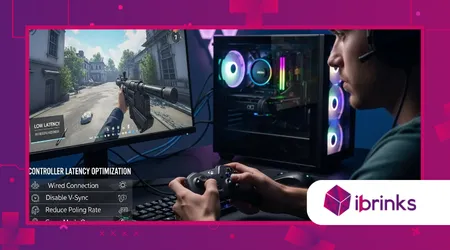
How to optimize controller latency on PC is the crucial, often-ignored step separating casual play from competitive excellence in 2025.
Latency, the delay between your input and the on-screen action, can cost precious milliseconds in fast-paced titles like fighting games or shooters. Ignoring this delay means actively sacrificing your performance potential.
Achieving minimal input delay requires a holistic approach, looking beyond the controller itself to examine the entire signal chain.
From hardware connections to software configurations, every millisecond saved contributes directly to a competitive edge.
Why is Wired Connection Still King for Low Latency?
Despite the convenience of modern wireless technology, a direct wired connection remains the gold standard for competitive gaming.
Anúncios
USB ensures a continuous, high-speed data flow that circumvents the interference issues inherent in wireless transmission.
A stable cable connection minimizes packet loss and maintains the highest possible polling rate, consistently delivering inputs with maximum immediacy. This reliability is non-negotiable for serious players.
++ Picking the right footrest for gaming comfort
What is the Significance of the Polling Rate?
The polling rate defines how often the controller reports its status to the PC, usually measured in Hertz (Hz).
A 1000 Hz rate means the controller updates its position 1000 times per second, or every 1 millisecond (ms).
Higher polling rates directly translate to lower latency. Ensure your controller and the connection method support the highest rate possible, often 1000 Hz or more.
Also read: Best ultra-lightweight mice for competitive play
Why Do Poor USB Ports Introduce Delay?
Connecting to old or improperly shielded USB ports can introduce unexpected delays and jitter. Avoid using front panel USB ports or inexpensive hubs, as they often have longer signal paths.
Always prioritize direct connection to the PC’s rear I/O, particularly using USB 3.0 or 3.1 ports for optimal data throughput. These connections offer the clearest pathway to the motherboard.
Read more: How to design a dual-PC streaming setup
The Wireless Interference Nightmare
A player using a high-end wireless controller noticed intermittent stuttering during intense online matches.
The problem was diagnosed as 2.4 GHz WiFi interference from a nearby microwave oven and multiple routers.
Switching to a direct USB-C cable instantly stabilized the connection and eliminated the random lag spikes, proving the superiority of the wired method for consistency.
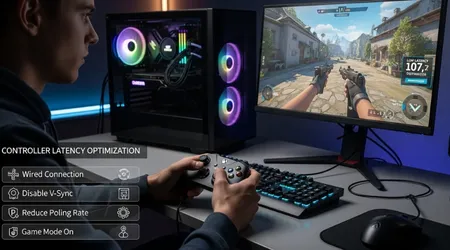
How Does Bluetooth and Wireless Technology Affect Latency?
Wireless solutions, while convenient, inherently introduce variables that add latency. Bluetooth, in particular, often operates at lower polling rates and is susceptible to external radio frequency (RF) noise.
Understanding these wireless limitations is key to knowing How to optimize controller latency on PC when a wired setup isn’t practical. The goal is mitigating, not eliminating, wireless delay.
Why is the Bluetooth Adapter Quality Critical?
A cheap, internal, or outdated Bluetooth adapter can dramatically increase latency due to poor handling of data packets. Always use a high-quality external Bluetooth 5.0 or 5.1 adapter.
These modern adapters handle bandwidth more efficiently and typically maintain a more stable connection, minimizing data re-transmission that causes perceptible delay.
What is the Role of the Wireless Dongle (Proprietary Connection)?
Many premium controllers utilize proprietary wireless dongles (like those from Xbox or Sony). These often use dedicated protocols (e.g., 2.4 GHz custom radio) far superior to standard Bluetooth.
These dedicated dongles usually offer a higher, more stable polling rate than generic Bluetooth. They are the best wireless option for serious performance.
Wired vs. Wireless Latency
Comparative input latency tests conducted by Hardware Unboxed in 2024 showed that the latency difference between a wired controller (averaging 4-6ms) and a high-quality proprietary wireless dongle (averaging 8-10ms) is manageable.
However, generic Bluetooth 4.0 often introduced delays exceeding 20ms, highlighting a significant performance gap.
Which Software and Driver Settings Must Be Optimized?
The operating system and game software can introduce significant latency, even with perfect hardware. Optimizing these software layers is a vital, often-overlooked step to achieve zero delay.
System settings, driver choices, and in-game options must be surgically tuned. This ensures the PC prioritizes input handling over all other background tasks.
Why is Disabling V-Sync Essential for Input Lag?
Vertical Synchronization (V-Sync) forces the frame rate to match the monitor’s refresh rate to prevent screen tearing. However, it often buffers frames, which dramatically increases input lag.
Always disable V-Sync and, if screen tearing is an issue, rely on modern adaptive sync technologies like G-Sync or FreeSync for both smooth visuals and low latency.
How Does the Operating System Affect Polling?
Windows’ default drivers sometimes restrict the controller’s maximum polling rate. Specialized third-party tools, such as HidHide or custom driver wrappers, can override these limits.
This allows the controller to report inputs at its true native speed, maximizing the effectiveness of your high-speed wired connection. The software layer needs careful tuning.
The Graphics Driver Configuration
A competitive Forza Horizon player experienced inconsistent braking response.
The issue was solved by changing a specific setting in the GPU control panel: setting “Max Frame Rate” to slightly below the monitor’s refresh rate.
This small change reduced the rendering queue length, immediately stabilizing the input response and drastically improving the driving feel.
Why is Game Engine Optimization Key to Input Response?
The game engine itself processes controller inputs, and specific in-game settings can inadvertently introduce artificial lag. Developers often include smoothing or filtering to make gameplay feel “less twitchy.”
However, competitive players need raw input accuracy. Adjusting dead zones, input smoothing, and acceleration curves within the game is crucial.
How Should Dead Zones Be Adjusted for Accuracy?
The dead zone is the small central area of the joystick that registers no input. A large dead zone increases perceived latency because the stick must move further before an action is registered.
Reduce the dead zone to the lowest possible setting that avoids stick drift, ensuring even minimal movements are instantly captured. This is a critical adjustment.
What is the Impact of Rendering Queues and Latency Modes?
Modern GPU drivers (like NVIDIA or AMD) offer “Low Latency Mode” settings. These settings reduce the number of frames queued by the CPU before being sent to the GPU.
Set this feature to “Ultra” or “Boost” to ensure the CPU is not holding onto your input command unnecessarily. This maximizes the responsiveness of the entire system chain.
| Optimization Step | Category | Impact on Latency (Approx.) | Action to Take |
| Wired Connection | Hardware | 5 – 15 ms Reduction | Use rear USB 3.0/3.1 ports; avoid hubs. |
| Polling Rate | Driver/Software | 1 – 5 ms Reduction | Ensure 1000 Hz via specialized drivers or firmware. |
| V-Sync | Graphics/Game | 10 – 50 ms Addition | Always disable; use G-Sync/FreeSync instead. |
| Low Latency Mode | GPU Driver | 3 – 7 ms Reduction | Set to “Ultra” or “Boost” in GPU control panel. |
| Dead Zone | In-Game Settings | Variable (Perceived Lag) | Reduce to minimum setting that prevents drift. |
Conclusion: Mastering the Millisecond Advantage
Mastering How to optimize controller latency on PC transforms your gaming experience from reactive to proactive.
By systematically addressing the entire signal path from a dedicated wired connection to surgically tuning driver settings you gain a tangible competitive advantage.
Latency optimization is about eliminating bottlenecks. Every single millisecond recovered means your reaction reaches the game environment faster than your opponents’.
Are you taking every possible step to achieve true zero-delay input in your favorite competitive titles? Share your own latency-reduction secrets in the comments below!
Frequently Asked Questions
Does the length of the USB cable matter for latency?
The cable length generally has a negligible impact on latency within reasonable lengths (up to 5 meters). Focus more on the quality and shielding of the cable itself.
Should I use controller-specific driver software?
Yes. Always use official, controller-specific drivers (like Xbox Accessories App or DS4Windows/DS5X if needed) and keep them updated. These drivers often include firmware updates that directly address latency issues.
What is “Input Jitter” and how do I fix it?
Input Jitter is the inconsistent delay between inputs, causing uneven response. It’s often caused by poor wireless interference or low-quality USB ports. The fix is usually a high-quality wired connection or a dedicated wireless dongle.
Does my monitor’s refresh rate affect controller latency?
Yes, significantly. A 144Hz monitor refreshes frames in about 6.9ms, while a 60Hz monitor takes 16.6ms. A higher refresh rate reduces display lag, which is the final, crucial step in the chain.
Should I use in-game frame rate limiters?
Generally, yes. Limiting the frame rate slightly below the maximum your PC can achieve (or below your monitor’s refresh rate) can reduce CPU queuing and smooth out frame delivery, which can minimize input latency variance.
