
Guide to RGB keyboard software & customization
Anúncios
RGB keyboard software transforms a basic desktop peripheral into an expressive, functional gaming command center.
Modern mechanical keyboards rely on sophisticated suites to control per-key lighting, custom macros, and dynamic game integrations.
Mastering these applications allows gamers to sync illumination across their ecosystem while improving in-game reaction times.
Customizing your keyboard lighting offers significant advantages beyond mere aesthetics for casual and competitive players alike.
Dedicated lighting profiles map specific cooldowns, health thresholds, and critical keybinds directly onto physical keycaps.
Anúncios
Industry research indicates that peripheral customization boosts player immersion and reduces cognitive load during fast-paced esports matches.
Key Sections Inside
- Software Mechanics: How desktop applications communicate lighting protocols directly to onboard microcontrollers.
- Customization Steps: Practical methods for mapping reactive layers and setting up complex macro triggers.
- Ecosystem Sync: Integrating open-source tools to unify lighting controls across competing hardware brands.
- Performance Matrix: A detailed comparison evaluating memory overhead across major peripheral management suites.
- Troubleshooting: Quick fixes for driver conflicts, firmware bricking, and background resource drain.
How Does RGB Keyboard Software Control Per-Key Lighting?
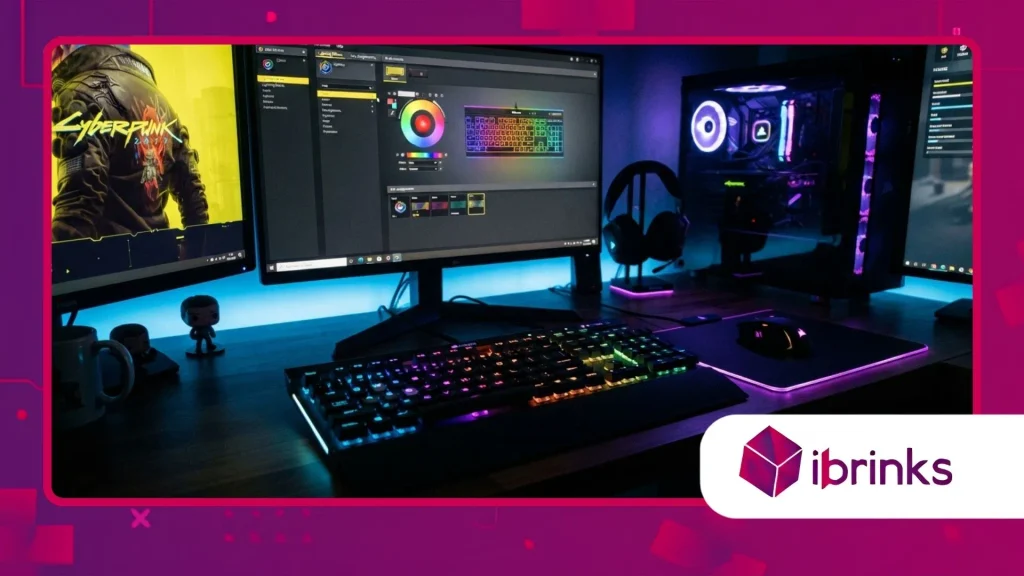
Understanding RGB keyboard software requires examining how digital instructions travel from computer operating systems straight into physical hardware microcontrollers.
Desktop applications send low-latency signals over USB endpoints to address individual surface-mounted light-emitting diodes under every keycap.
High-performance keyboards process these color matrices using integrated ARM processors that render complex visual effects in real time.
Modern suites offer granular control over color profiles, layer blending, and frame rates for dynamic lighting animations. Gamers can build multi-layered lighting maps where base color waves react instantly to specific key presses.
These complex visual pipelines operate seamlessly alongside onboard memory profiles to ensure custom illumination persists without running heavy background software.
What Role Do Onboard Microcontrollers Play in Illumination?
Onboard microcontrollers act as the dedicated processing unit for processing lighting commands and custom macro execution inside your keyboard.
These miniature integrated circuits store user profiles, color tables, and matrix mapping data within high-speed non-volatile onboard memory chips.
When you launch a game, the chip instantly switches lighting layouts without consuming extra central processing unit cycles.
Hardware-level execution ensures your lighting effects remain smooth and responsive even during heavy gaming workloads or system updates.
High-end keyboards utilize 32-bit controllers to handle complex lighting scripts and rapid key scanning simultaneously without input delay.
By offloading lighting calculations from host memory, onboard processors preserve maximum system resources for demanding title rendering engines.
++ How Cloud Infrastructure Scales a Global Gaming Championship
Why Do Open-Source RGB Tools Outperform Brand Ecosystems?
Open-source peripheral platforms eliminate the need to run multiple proprietary peripheral applications concurrently on your gaming machine.
Third-party suites aggregate lighting controls across competing hardware brands into a single lightweight, unified graphical dashboard interface.
These platforms leverage reverse-engineered hardware protocols to sync illumination across motherboards, graphics cards, RAM sticks, and desktop peripherals.
Universal applications drastically cut background RAM consumption while preventing common driver collisions that cause lighting lag or stuttering.
Developers update open-source tools rapidly to add broad support for enthusiast custom mechanical keyboard PCBs and controllers.
Choosing open-source management software keeps your gaming setup lightweight, stable, and completely brand-independent for effortless customization.
How to Customize Effects and Map Macros Efficiently?
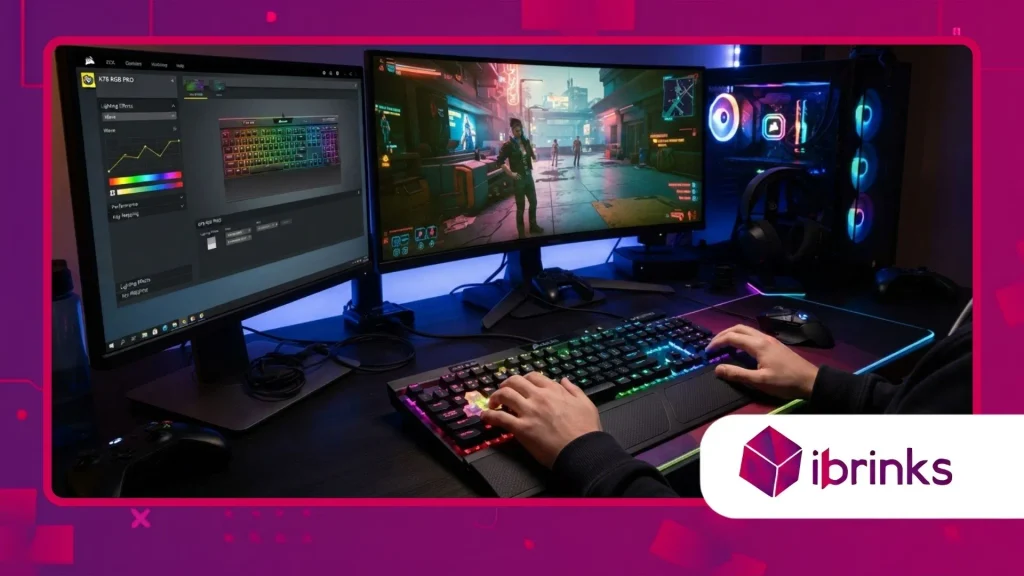
Navigating RGB keyboard software setup menus allows users to craft custom illumination layouts tailored specifically to favorite game genres.
Establishing reactive lighting layers highlights active keybinds while muting unused keys to improve visual clarity during intense play sessions.
Advanced customization options include integrating real-time telemetry metrics to display CPU temperatures or player health status directly on keycaps.
Beyond pure aesthetics, programming custom macros and remapping primary function keys stream-lines tedious desktop workflows and complex gaming combinations.
Users can record precise keypress sequences, adjust hardware millisecond delays, and bind executable scripts directly to single switches.
Storing these configurations directly inside internal onboard hardware profiles ensures seamless portability when swapping between different computers.
Also read: The Rise of Multi-Genre Formats in Gaming Championship Play
What Are the Best Steps to Map Reactive Lighting Layers?
Mapping reactive lighting effects begins by assigning a static, low-brightness ambient base layer across the entire keyboard layout.
Next, create a secondary reactive layer configured to trigger vivid color ripples whenever a switch registers a stroke.
Adjusting effect duration, fade speeds, and color blend modes ensures lighting animations remain subtle rather than distracting.
Advanced customization profiles allow binding specific color palettes to critical gaming keys like movement clusters and ability shortcuts.
For example, assigning green lighting to ultimate ability keys provides an immediate visual cue when skills finish cooling down.
Layering dynamic effects intelligently creates a functional visual dashboard that actively supports competitive gameplay mechanics.
Read more: How Data Ownership Impacts a Global Gaming Championship
How Do You Program Advanced Macro Sequences Without Lag?
Programming lag-free macro sequences requires utilizing precise hardware timing controls within your preferred peripheral management application suite.
Start by recording your desired combination, then edit inter-key delay parameters to match minimum game engine input thresholds.
Removing unnecessary delay spikes guarantees your recorded macro combinations execute with absolute consistency during competitive online play.
Assigning long macro scripts to secondary function layers prevents accidental key triggers during standard typing or desktop browsing sessions.
High-end software suites allow linking macro profiles directly to specific game executables for automatic profile switching upon launch.
Testing macro execution inside target applications ensures custom inputs process smoothly without triggering anti-cheat security flags.
Why Is Cross-Brand Lighting Synchronization Important?
Managing multiple proprietary illumination applications frequently leads to severe system bloat, driver instability, and mismatched color reproduction across desktop components.
A single unified management framework synchronizes color shifts seamlessly across your mouse, keyboard, lightstrips, and internal hardware components.
Unified control delivers a clean desktop environment while eliminating frustrating background conflicts between competing manufacturer software packages.
According to recent gaming hardware survey data, over 68% of PC builders utilize components from at least three different hardware manufacturers in their primary rigs.
Cross-brand synchronization tools resolve hardware fragmentation by providing a central interface that addresses addressable RGB headers universally.
Establishing single-app control ensures your entire setup reacts coherently to dynamic audio, screen color mirroring, or game events.
How Does Screen Mirroring Enhance Desktop Gaming Immersion?
Screen mirroring technology analyzes active monitor pixels in real time and projects matching color tones onto surrounding RGB peripherals.
Specialized lighting algorithms divide display boundaries into dedicated capture zones that dictate keycap lighting colors along matching physical edges.
This dynamic projection extends game visuals beyond monitor bezels, creating an immersive ambient glow across your gaming workspace.
Configuring capture sampling rates correctly prevents performance drops while maintaining instantaneous color updates during high-speed gaming action.
Users can adjust color saturation boundaries to ensure peripheral lighting accurately reflects subtle environmental shifts in dark games.
Screen-matching technology transforms passive keyboard illumination into an active visual extension of your favorite gaming titles.
Why Do Background RGB Drivers Cause FPS Drops?
Heavy background peripheral software frequently running multiple telemetry monitors can consume significant central processor cycles and RAM capacity.
Bloated vendor applications run background update services, telemetry loggers, and redundant overlay hooks that interfere with game engine threads.
These micro-stutters manifest as sudden frame time spikes during demanding competitive gameplay, degrading overall gaming smoothness.
Optimizing system performance involves disabling unnecessary software features like cloud syncing, overlay graphics, and continuous hardware monitoring modules.
Alternatively, exporting custom lighting designs directly into onboard memory allows closing background desktop management applications entirely.
Running clean system environments frees processing bandwidth, ensuring maximum frame rate stability across high-refresh-rate gaming displays.
Performance Comparison of Major Customization Suites
Evaluating RGB keyboard software options requires comparing resource utilization, ecosystem support, and profile customization flexibility across leading market platforms.
| Software Platform | RAM Consumption | CPU Usage | Cross-Brand Support | Onboard Memory Export |
| OpenRGB | Very Low (~30 MB) | Negligible (<0.5%) | Universal / Native | Limited by PCB |
| SignalRGB | Moderate (~180 MB) | Low-Moderate (1-3%) | Broad Integration | Application Dependent |
| Corsair iCUE | High (~350 MB) | Moderate (2-5%) | Vendor Specific | Full Hardware Support |
| Razer Synapse | High (~300 MB) | Moderate (2-4%) | Ecosystem Limited | Full Hardware Support |
Selecting lightweight management tools protects system overhead while ensuring complete creative control over complex peripheral lighting layouts.
Mastering Peripheral Personalization for Maximum Performance
Mastering custom lighting tools transforms standard desktop hardware into a personalized, high-performance peripheral tailored precisely to your gaming demands.
Combining lightweight background applications, custom reactive layers, and onboard hardware profile storage maximizes both visual flair and operational efficiency.
Eliminating bloatware frees system resources, allowing high-refresh displays and demanding game engines to run with uncompromised fluidity.
Take time today to audit your peripheral management setup, eliminate resource-heavy background processes, and craft custom profiles that elevate your daily gaming experience how will you optimize your desktop lighting layout next?
Frequently Asked Questions
Can I save custom lighting profiles directly to my keyboard without keeping the software open?
Yes, most modern mechanical keyboards feature integrated onboard memory chips designed specifically to store user lighting layouts and macro rebinds.
Once you configure your preferred profiles inside the desktop application, look for the “Save to Device” or “Hardware Profile” option. After exporting data to the board, you can safely close or uninstall the background software completely.
Why do the colors on my RGB keyboard look different from my mouse and RAM lighting?
Color discrepancies occur because different peripheral manufacturers utilize varying LED quality, diffuser materials, and color calibration profiles across their hardware.
Additionally, keycap plastics and surface coatings alter how light refracts before reaching your eyes.
You can correct color variations inside universal software suites by applying manual RGB offset adjustments to individual hardware components.
Will running RGB software in the background affect my gaming frame rates?
Heavy proprietary vendor suites can cause micro-stutters and frame rate drops by consuming excessive RAM and polling CPU threads continuously.
Lightweight open-source alternatives or saving static profiles directly into onboard memory eliminates background CPU overhead.
Closing resource-heavy peripheral managers ensures your system devotes maximum processing power directly to running your active games smoothly.
What is the difference between software-based and hardware-based RGB lighting?
Software-based lighting calculates lighting animations continuously using your computer’s main CPU and system RAM before sending instructions over USB.
Hardware-based lighting relies entirely on internal microcontrollers embedded directly inside the keyboard to run pre-saved animation profiles without host system intervention.
Hardware illumination operates independently of running operating systems, ensuring zero impact on gaming performance.
Is it safe to use third-party open-source software with proprietary RGB keyboards?
Using reputable open-source tools like OpenRGB or SignalRGB is generally safe and widely supported by the enthusiast mechanical keyboard community.
These applications communicate with hardware controllers using standard USB endpoints without modifying permanent firmware files.
However, always download utilities directly from official project repositories to ensure you receive verified, secure software releases.
